
What are Multi Legs?
A Multi Leg job in Allotrac is a way to group several related job segments (“legs”) into a single, managed workflow. Each “leg” represents one part of a journey—such as a pickup, transfer, or drop-off—that together form a complete job, even if different legs use different drivers, vehicles, or stops.
When to Use Multi Legs
-
Multiple stops or transfers: When a journey involves more than a simple point A to B—e.g., depot transfer, staged delivery.
-
Chain deliveries: Deliveries that require hand-offs or intermediate holding sites.
Typical Examples:
-
A delivery picked up from a warehouse, moved to a depot, then delivered to a customer.
-
Waste collected from several sites and consolidated at a transfer station, then delivered for disposal.
How Multi Legs Work in Allotrac
-
A Multi Leg job is a job containing two or more “legs” (each leg is a normal job, with its own origin, destination, status, and details).
-
The order of legs defines the workflow for the overall job.
-
All legs are visible and tracked together, so changes and status are reflected in real time.
-
If a Multi Leg job is reduced to a simple two-leg journey, Allotrac will convert it back to a single, standard job to keep things simple.
How to create, edit and manage multi-leg jobs in Allotrac.io
1. Navigate to https://app.allotrac.io and log in to your Allotrac.io site
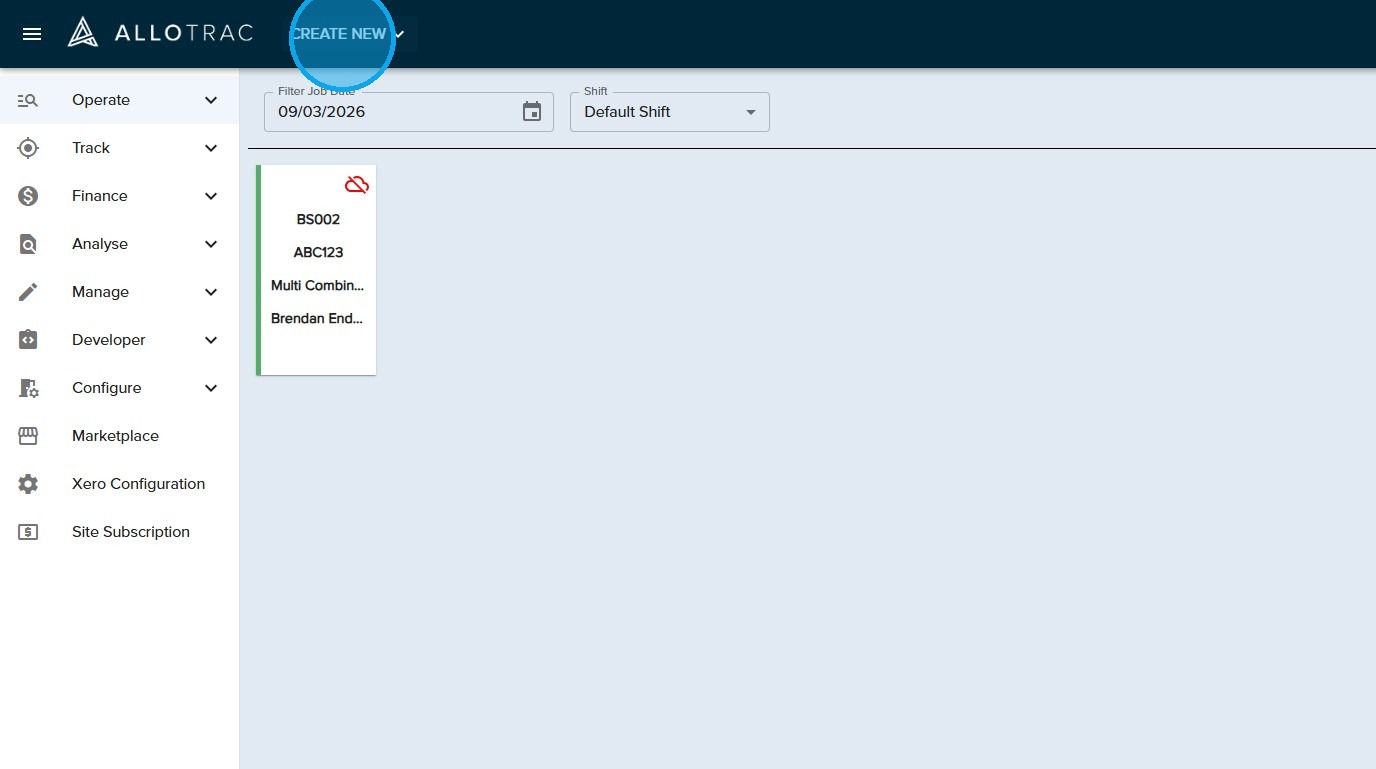
2. Click the "CREATE NEW" button
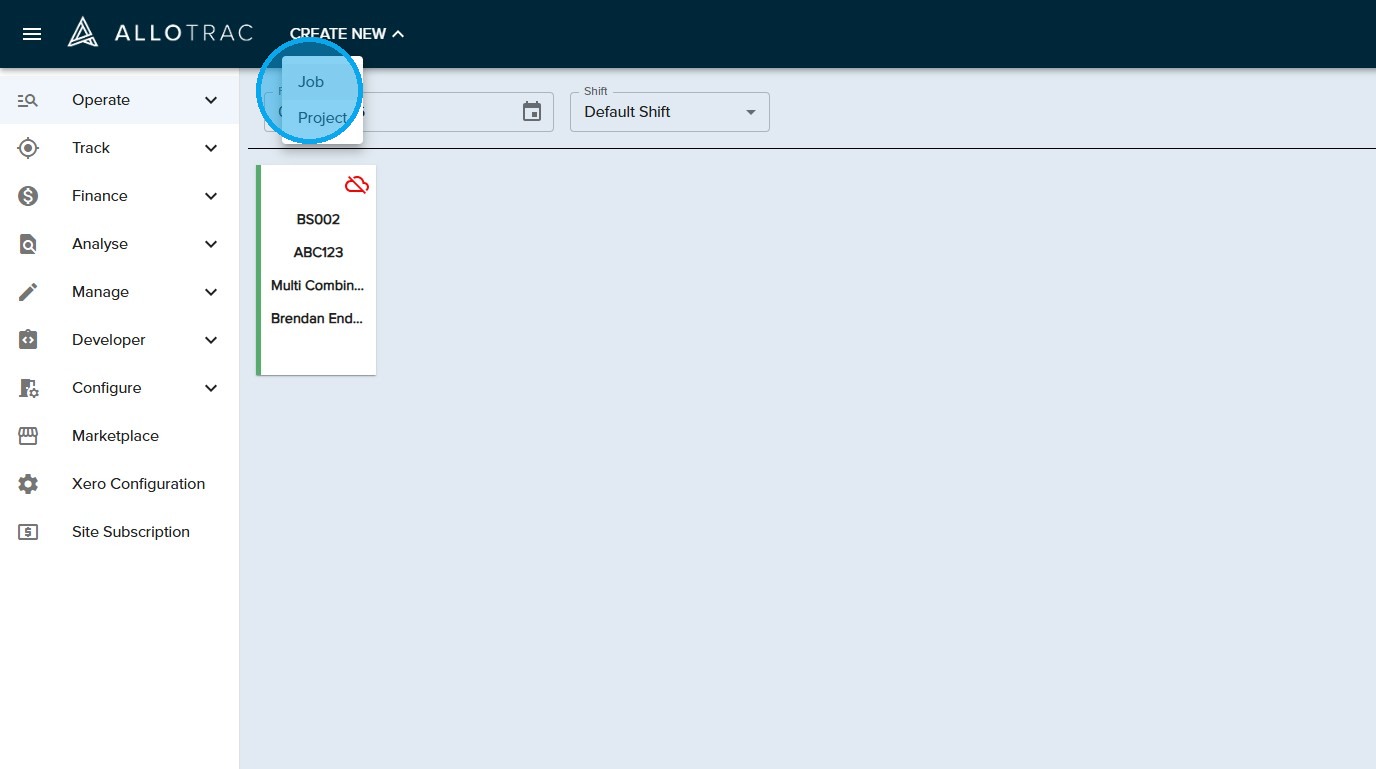
3. Click the "Job" button from the drop down menu
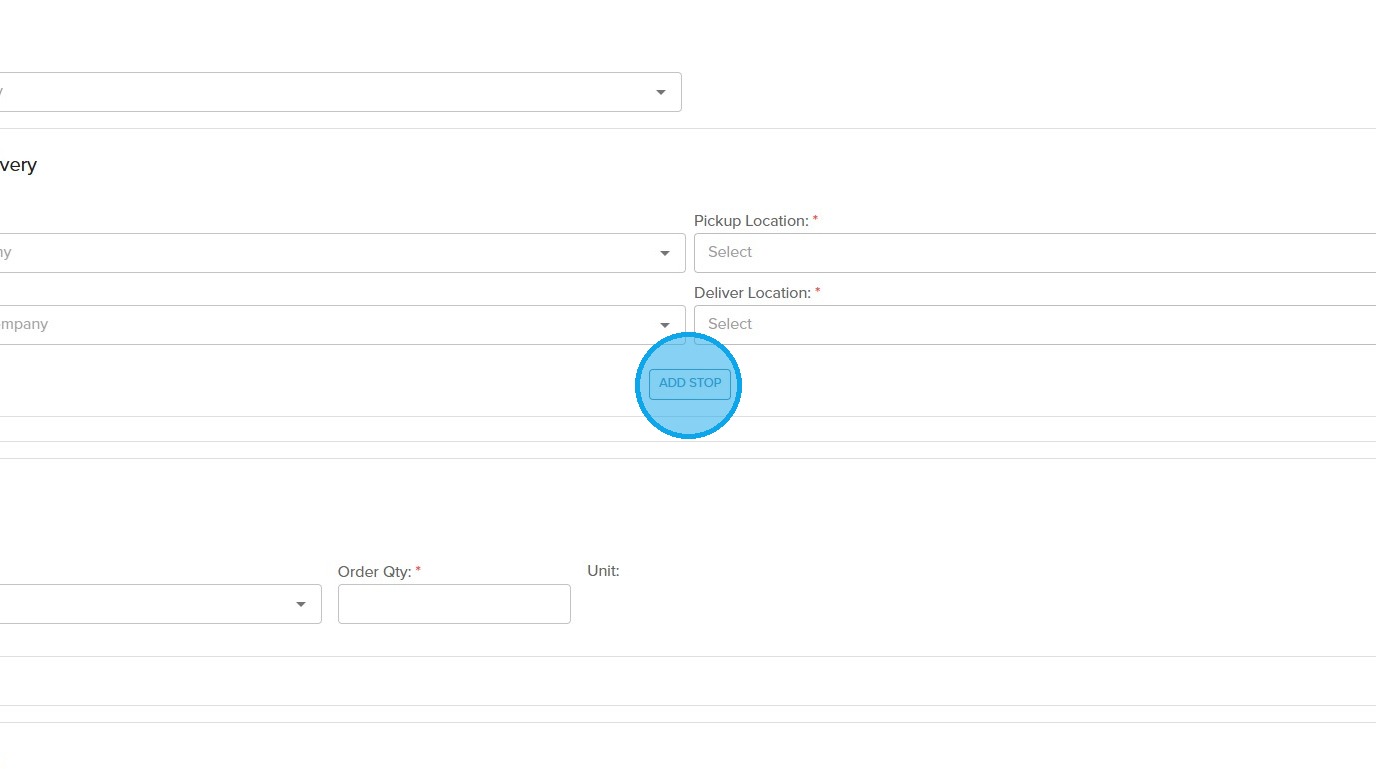
4. Click the "ADD STOP" button in the job entry form
5. You will now be able to enter your stops into your job
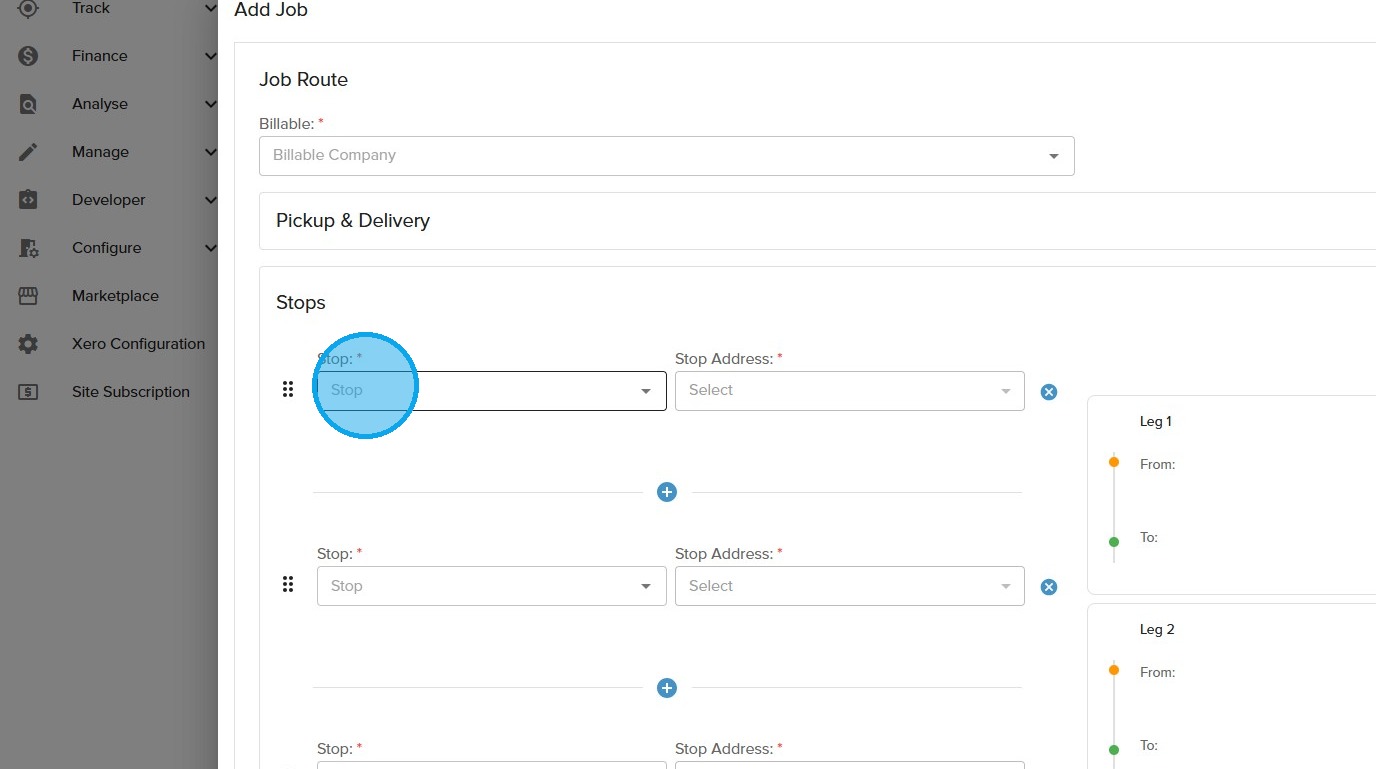
6. Enter your contacts and contact addresses as stops within your jobs
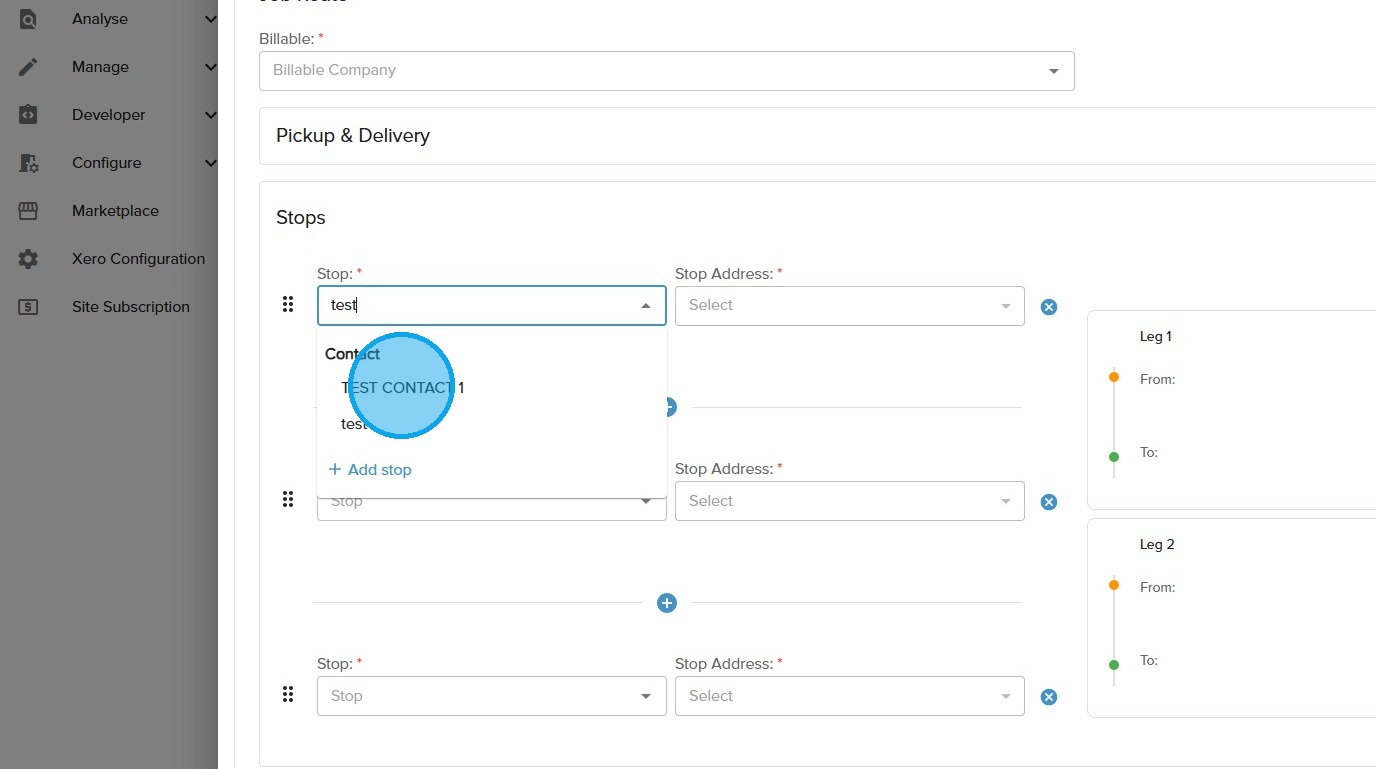
7. If you want to add multiple legs to your job, you can add more legs by clicking the "+" at any time within the job form
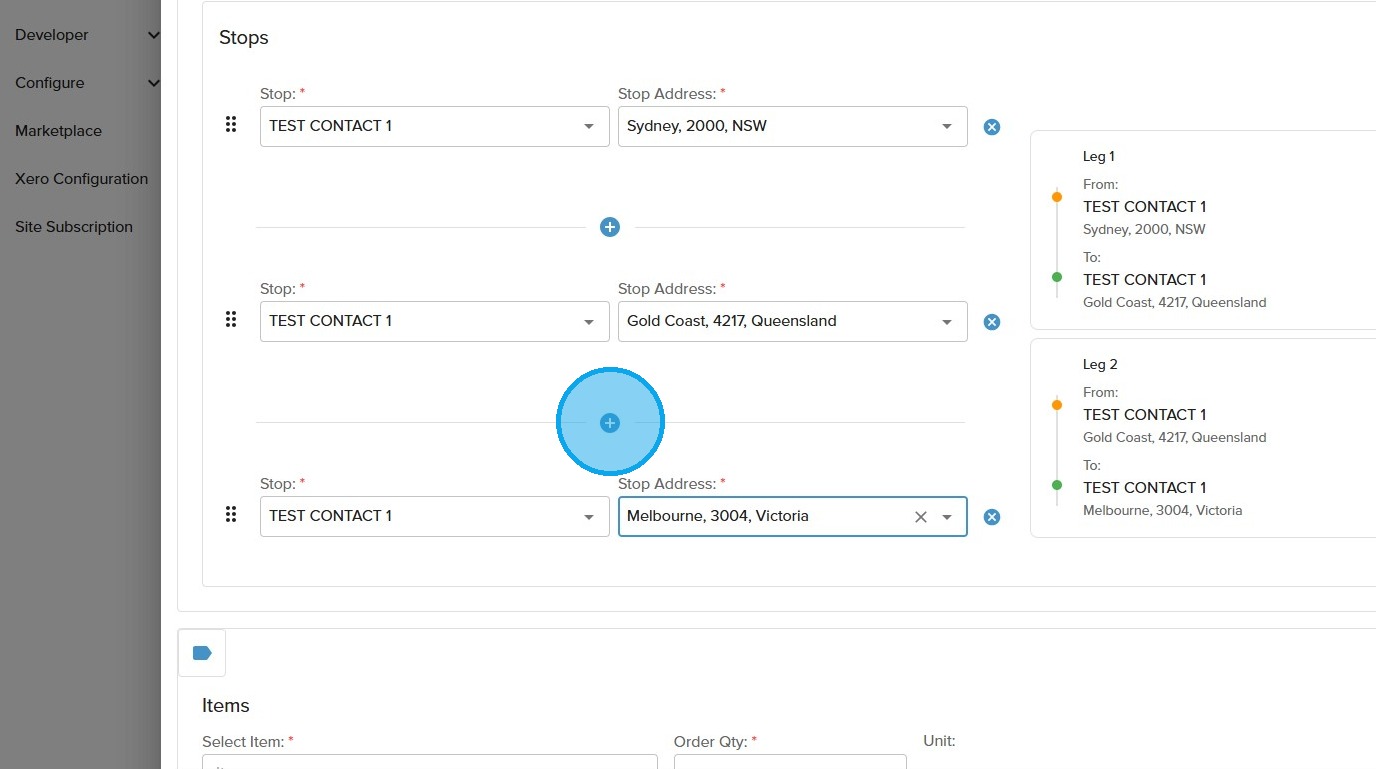
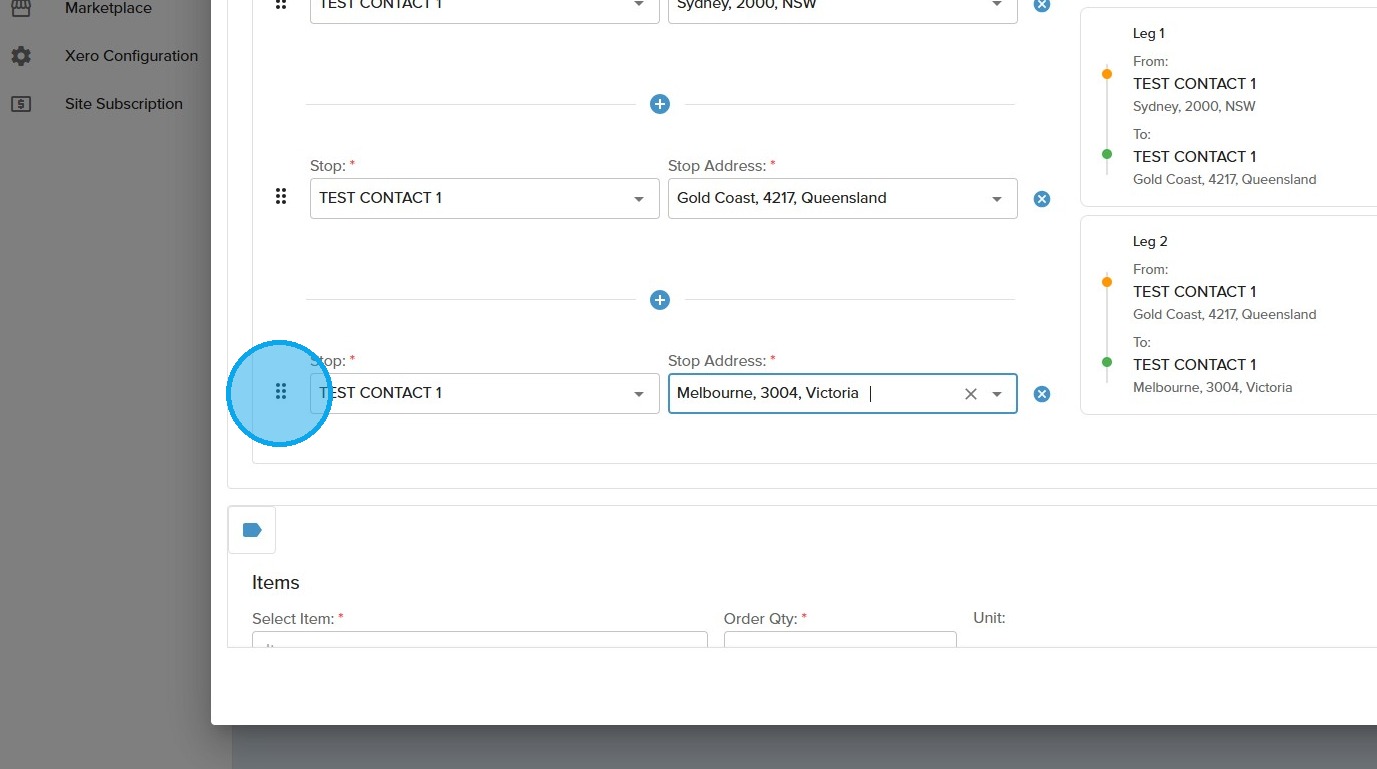
8. If you would like to swap any stops around whilst creating the multi leg job, simply click and drag each stop using the toggle bar shown below
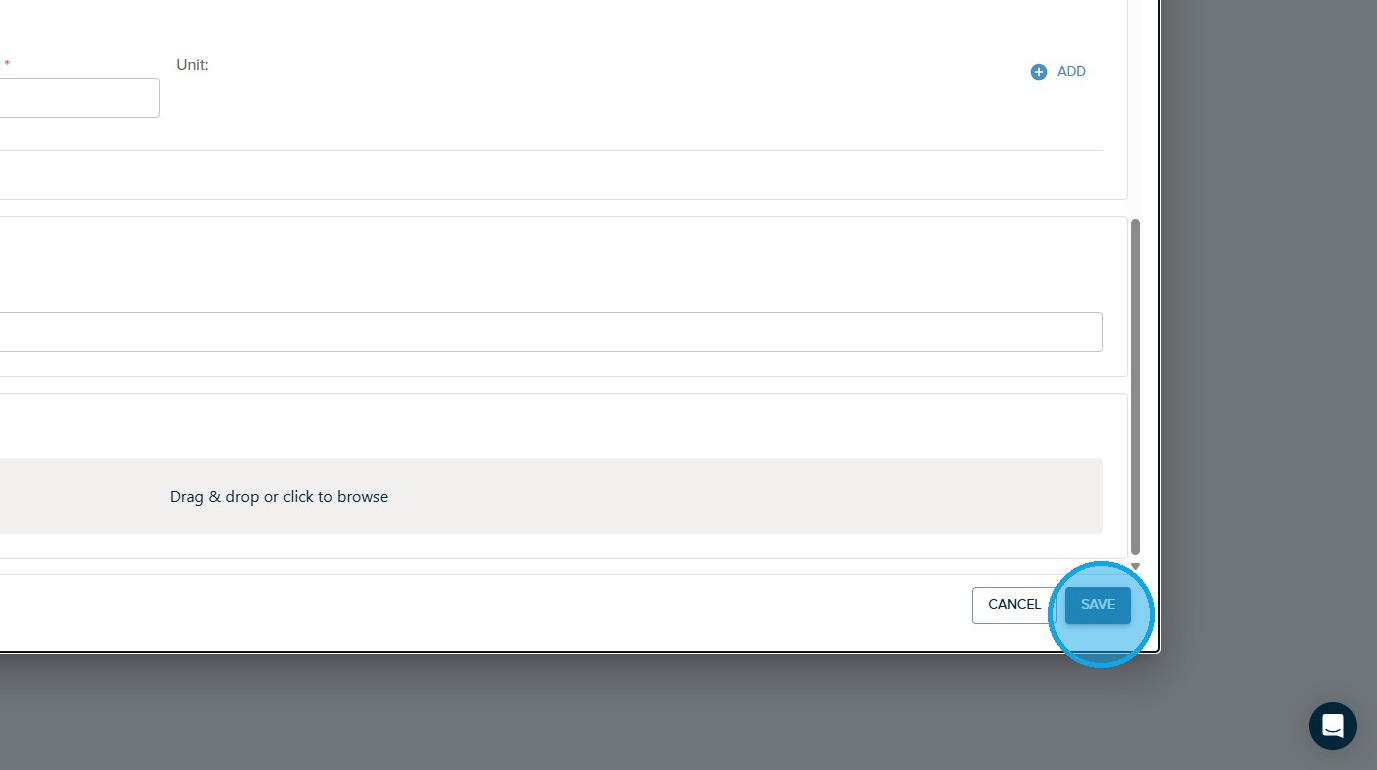
9. Once you have completed the job form and are happy with your stops, click the "SAVE" button to continue
10. To distinguish a multi-leg job from a normal job within the allocation screen, you will notice that each leg shows a chip located in the bottom left hand corner of the tile with information regarding which leg it is
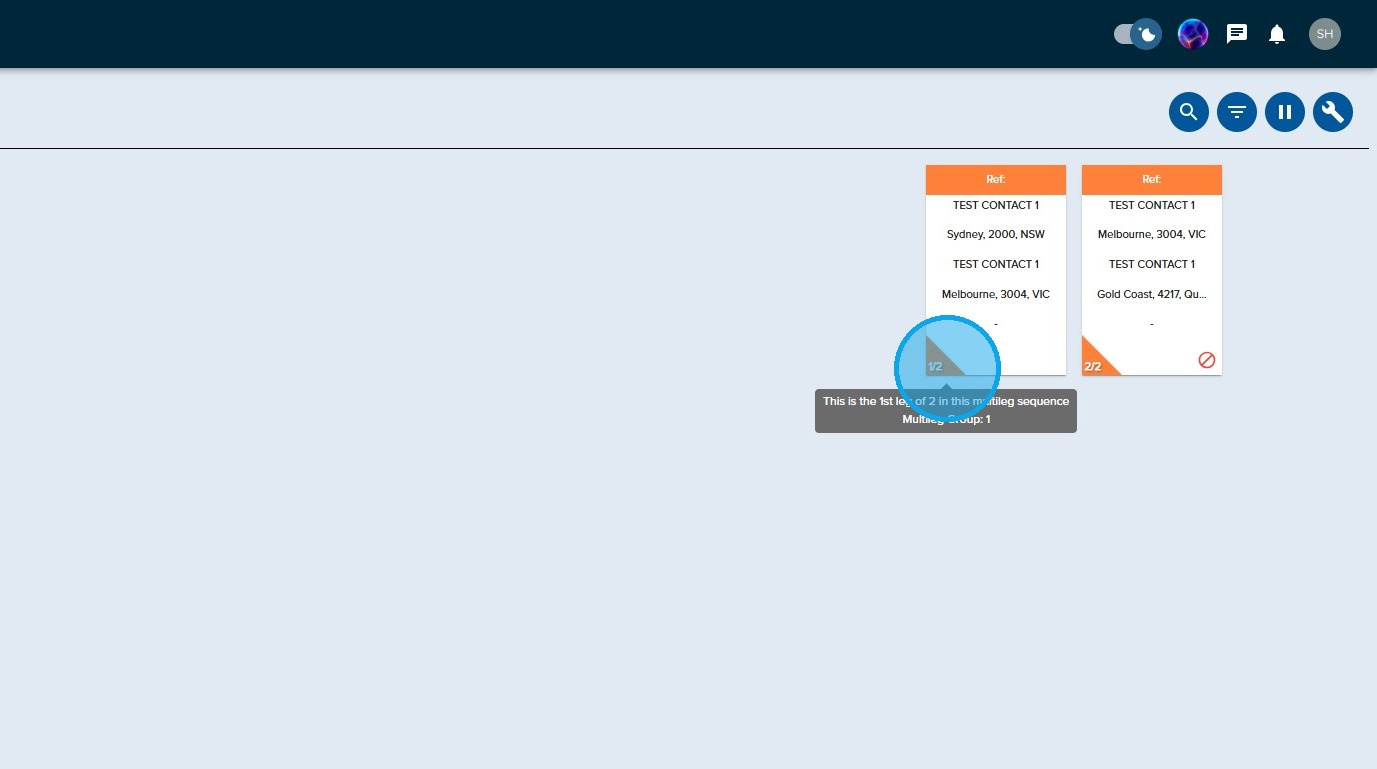
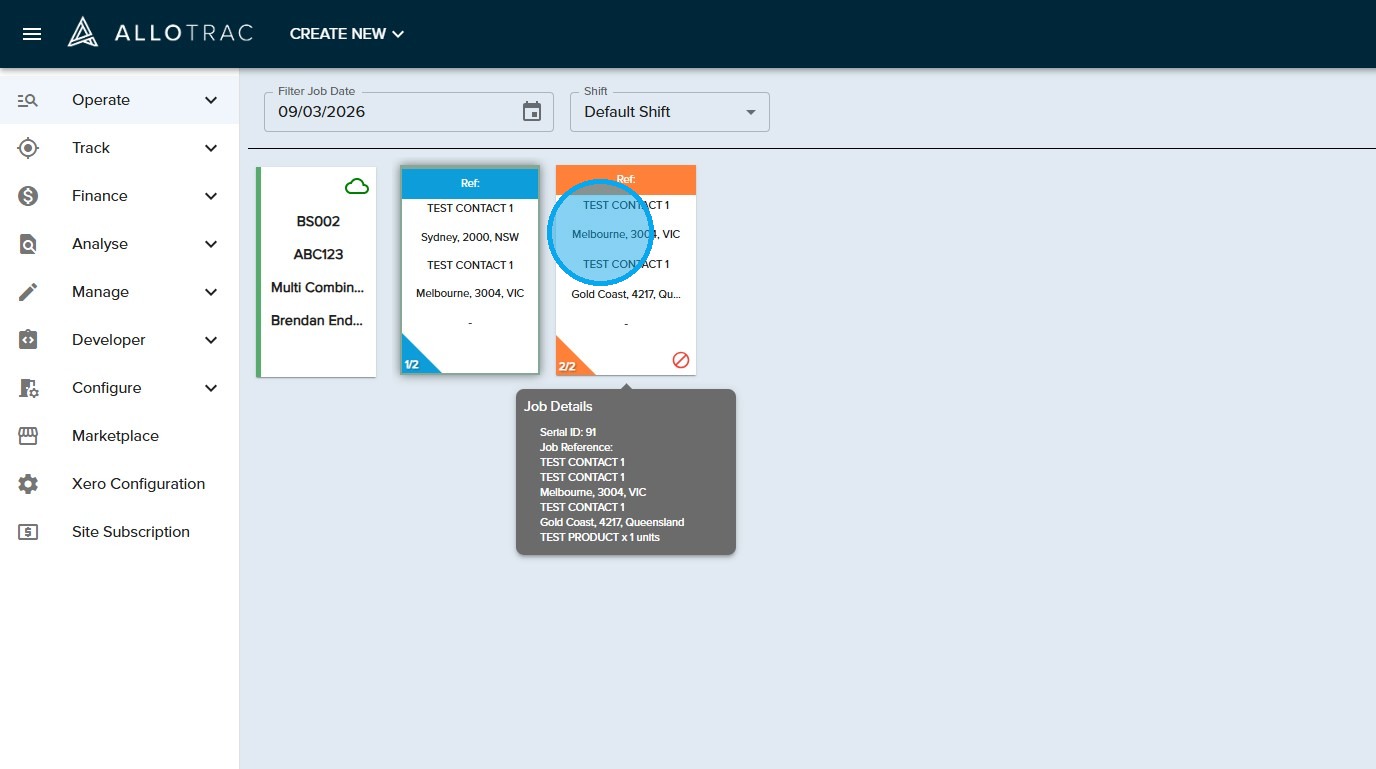
11. On a job that is not yet the active leg of a multi leg job, you will notice that there is an impediment icon
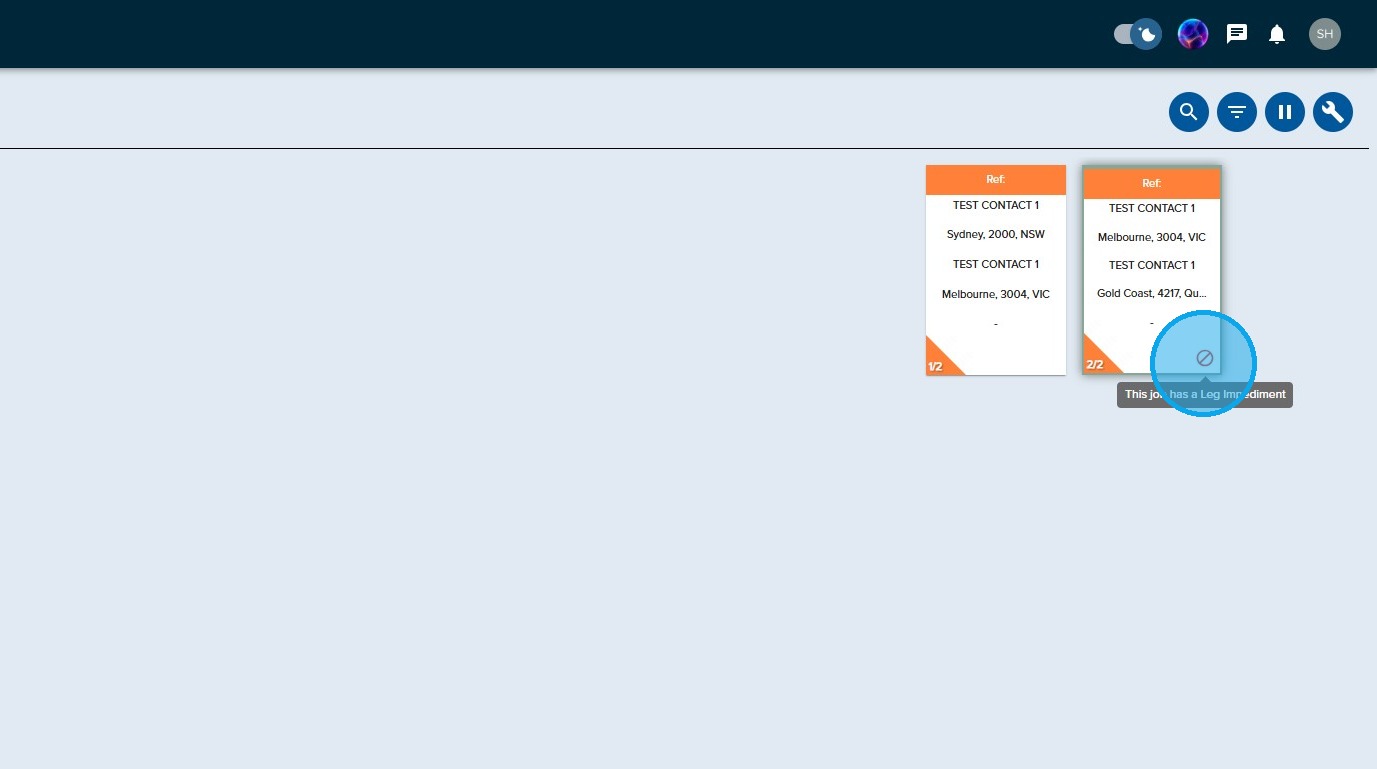
12. In this example, you can see that this job cannot be started by the driver until the leg before it is completed
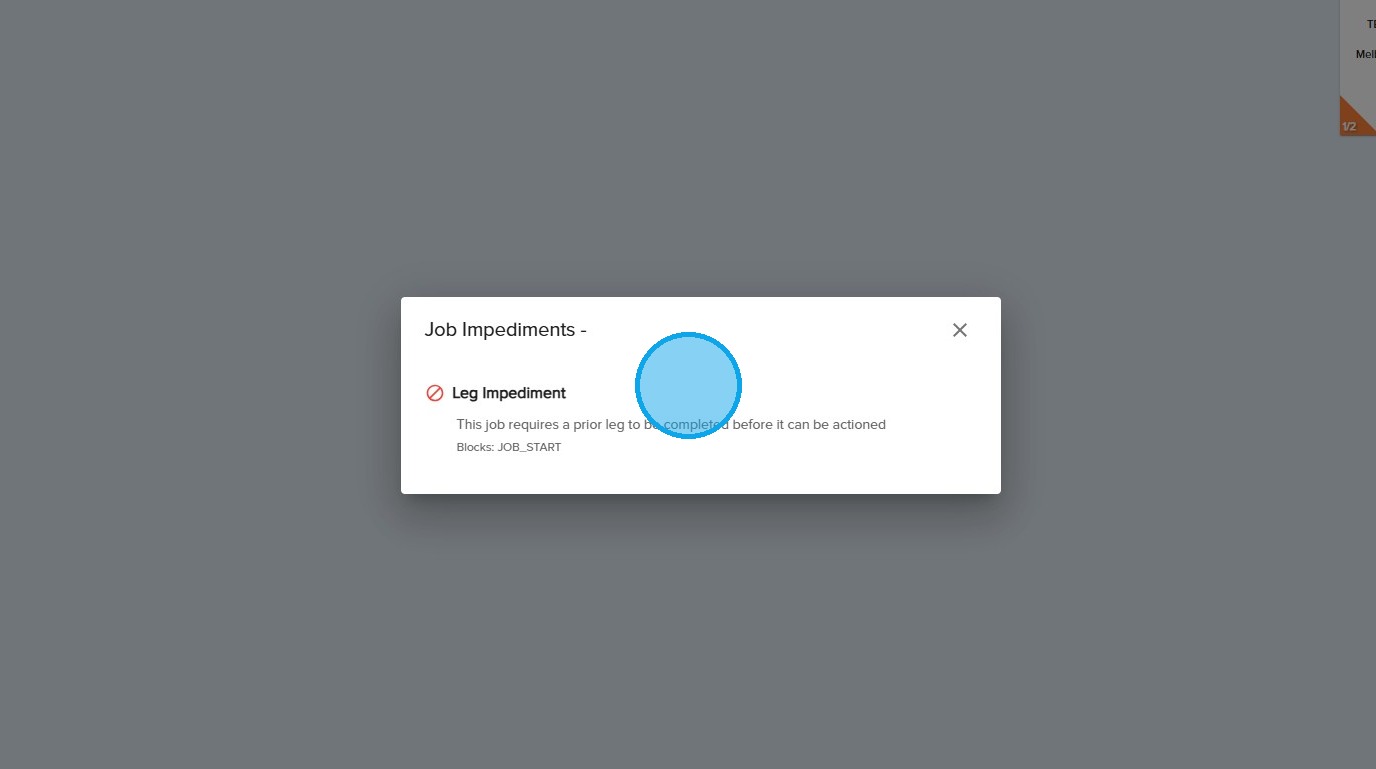
If you wish to allocate legs that are not yet active to your vehicles, don't stress - you'll still be able to do so - your drivers just cannot start these legs
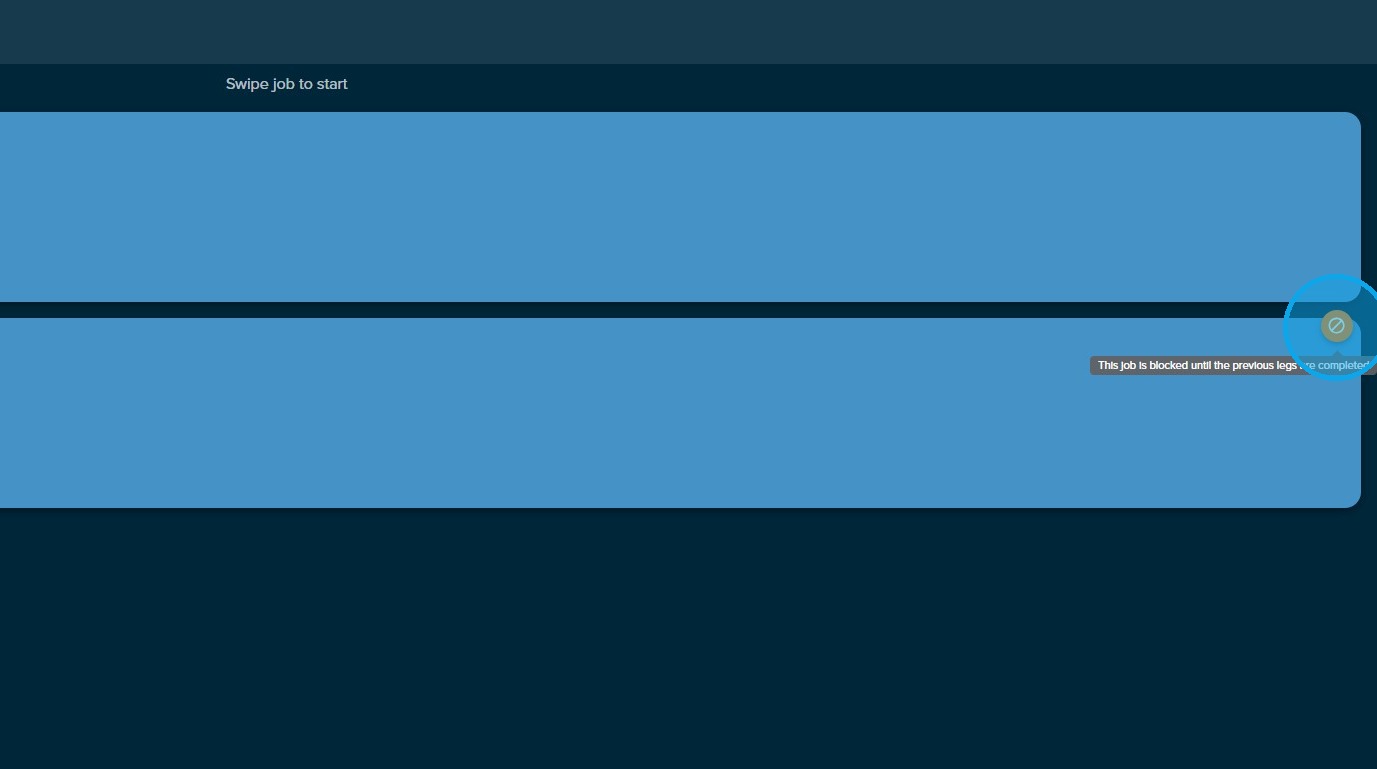
13. In the Allotrac.io Driver App, a leg that is not yet the active leg will show an impediment on it and won't be able to be started
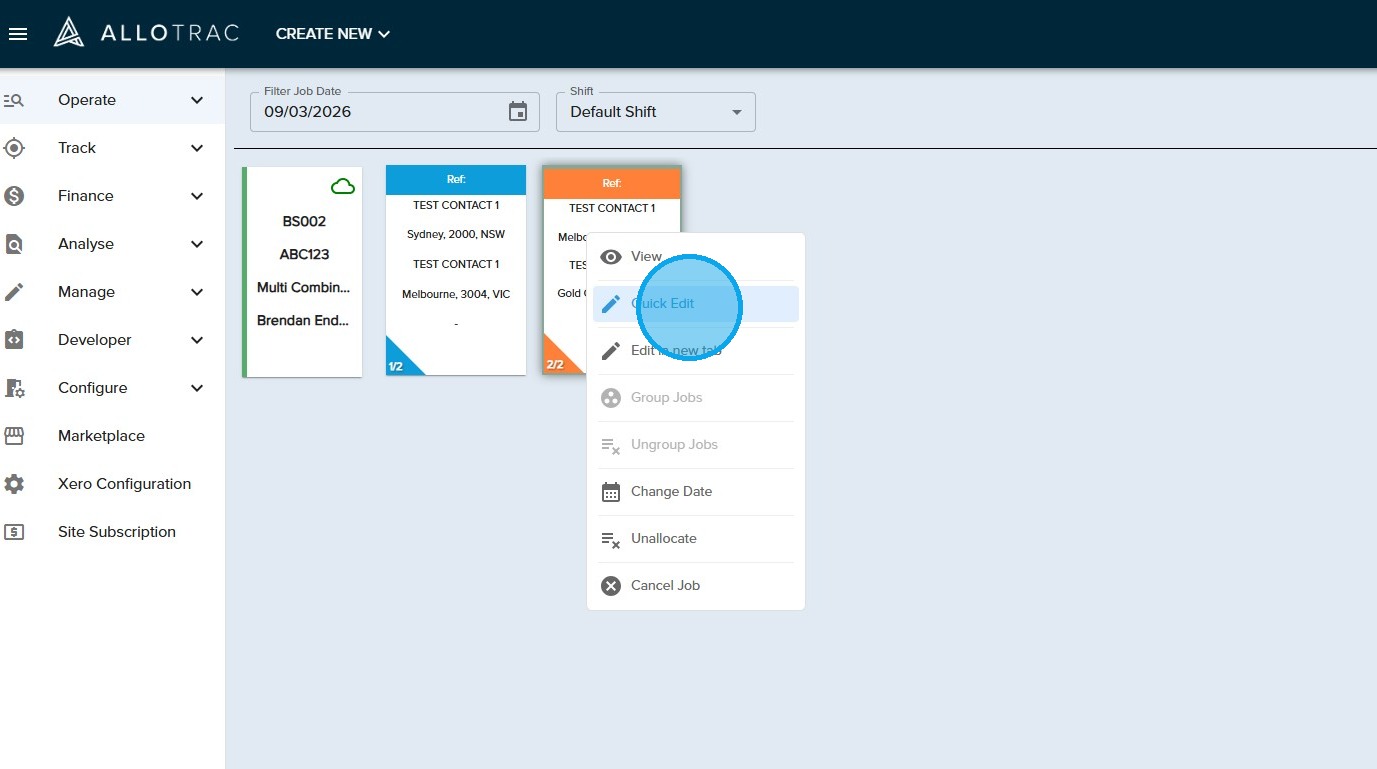
14. If a multi leg job is currently in progress, you will still be able to edit legs following the active leg as shown below. Simply right-click on the idle leg
15. Then select "Quick Edit" from the pop up menu
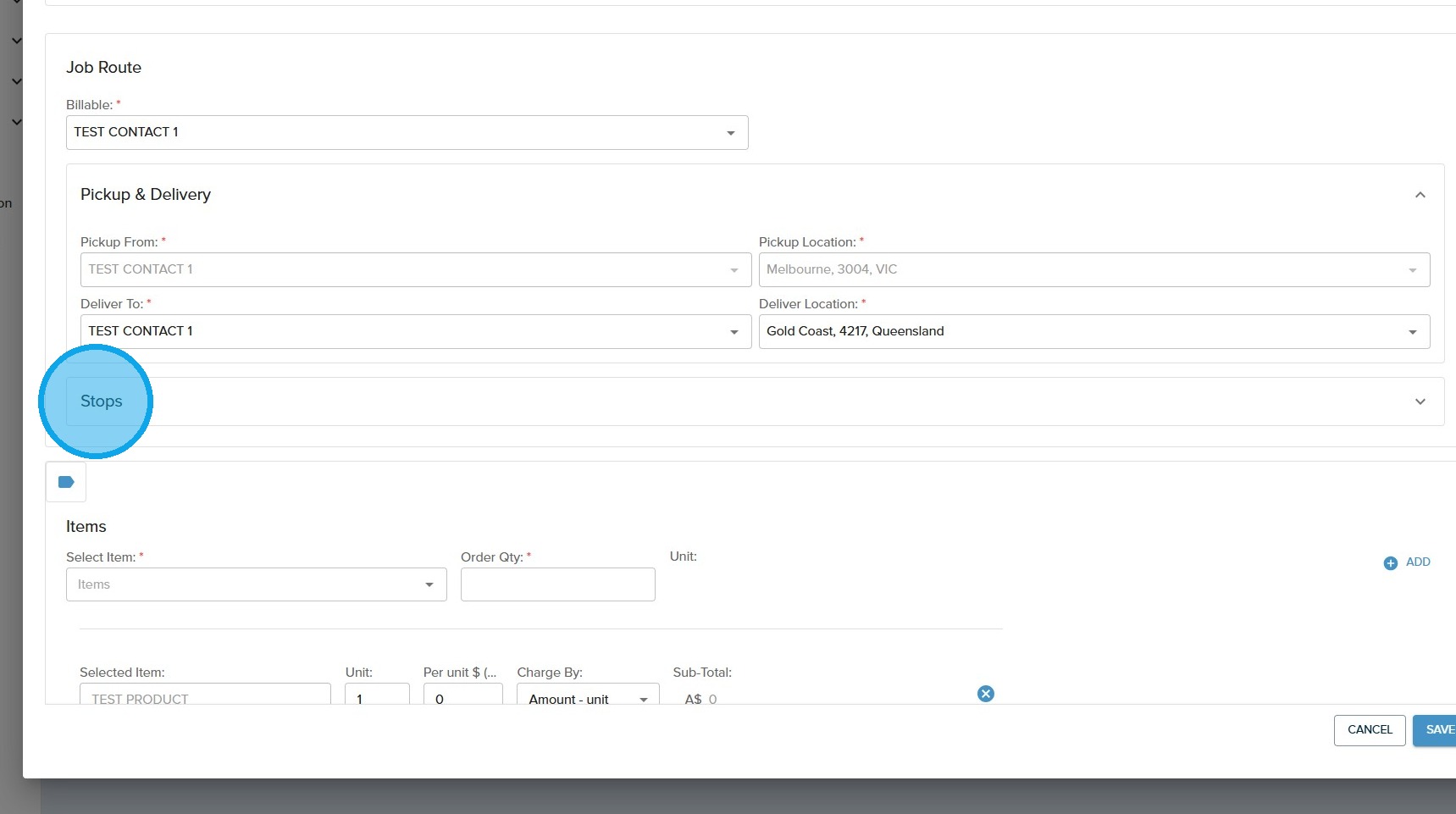
16. Click on the "Stops" row within the job form
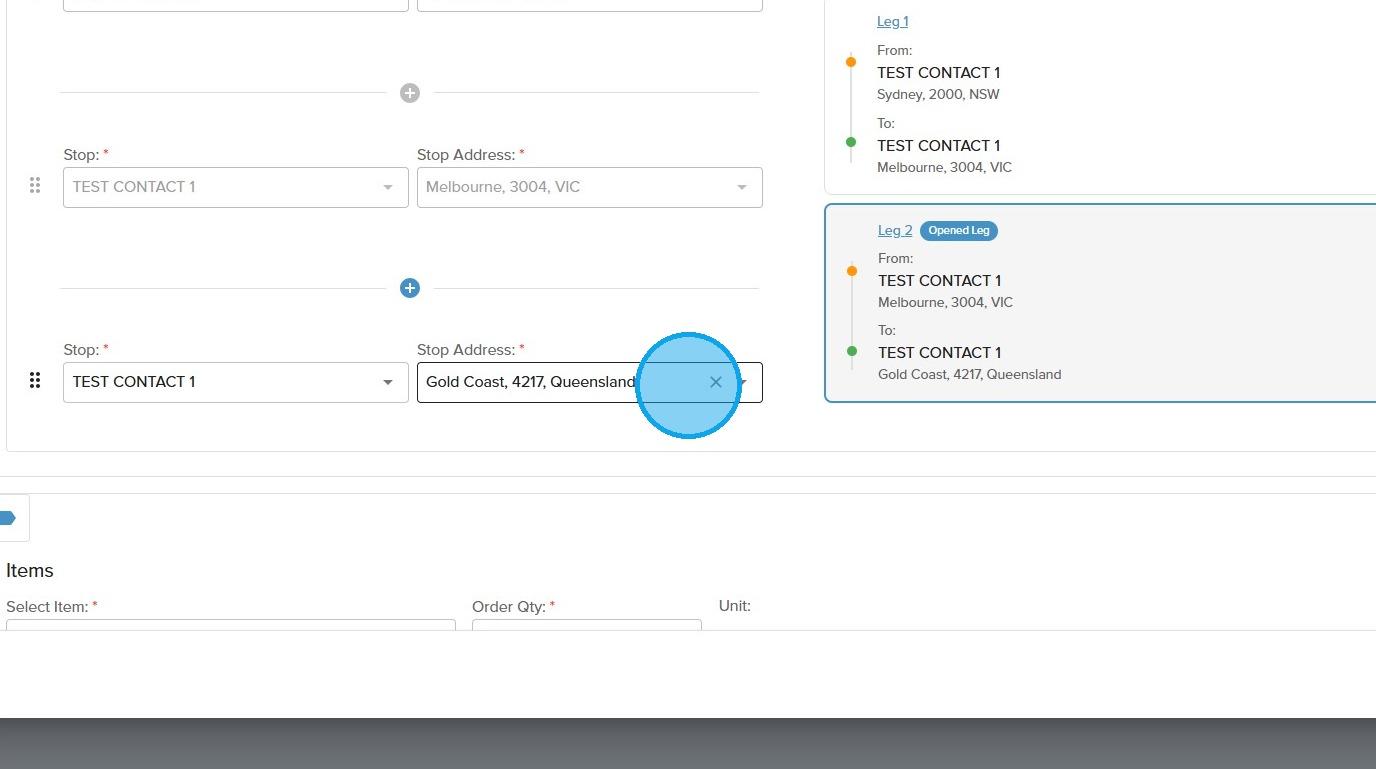
17. Then you will be able to edit, remove or add more stops onto this in progress multi leg job
You now know how to create, edit and manage multi leg jobs within your Allotrac.io site. Use them to manage complex deliveries and move items through multiple stops and locations